
Flyers and promotions
How to make a flyer background with AI
Use Flyer Background Generator when you want the visual backdrop of a flyer without baked-in wording. Describe the event, mood, colors, and composition, then add your headline and details in the design editor you already use.
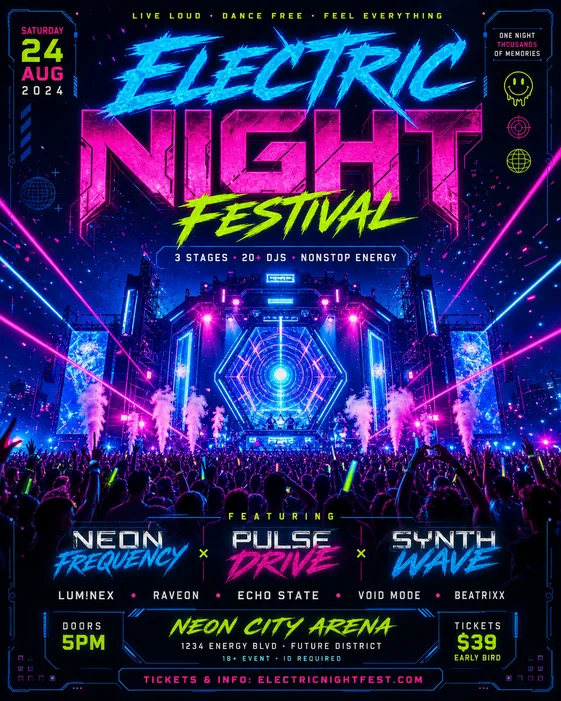
1. Choose the flyer format and destination
Start with where the flyer will appear. A portrait layout is a practical default for printed handouts and story-style posts, while square or landscape formats may suit social feeds, screens, and event pages.
Pick the final proportion before generating so the important subject and empty copy area are composed for the correct canvas rather than cropped later.
- Portrait for handouts and story posts
- Square for social feeds
- Landscape for screens and event headers
2. Describe the visual direction
Describe the event or campaign, mood, color palette, lighting, materials, and main visual elements. Do not provide final headline copy unless it is only context—the generator is instructed to return a text-free background.
Specific art direction gives the image a purpose. For example, ask for a sophisticated jazz-night backdrop rather than only asking for a dark background.
- Event or campaign type
- Mood and color palette
- Main subject or decorative elements
- Lighting, texture, and level of detail
3. Reserve negative space for your copy
Say exactly where the clean area should be: open space at the top for a headline, a quiet center for event details, or a clear lower band for a call to action. This helps the background support the information you will add later.
If the first result is too busy, ask for fewer objects, softer contrast behind the copy area, or more decoration around the edges instead of the center.
Flyer background prompt examples
Party background: "Create a vertical nightclub flyer background with electric purple and cyan lighting, soft haze, metallic reflections, and energetic edge details. Leave a dark, uncluttered center and upper third for text. No words, letters, numbers, logos, or watermarks."
Church event background: "Create a warm portrait flyer background with a sunrise through soft clouds, subtle gold light, and calm blue tones. Keep the upper half open and readable for a headline and leave a clean area near the bottom for event details. No text or symbols containing words."
Business promotion background: "Create a clean modern flyer background with navy and cobalt geometric shapes, subtle depth, and a polished corporate feel. Keep the right side mostly empty for a headline, offer, and call to action. No logos, text, letters, or numbers."
4. Generate and inspect the background
Check that the output has no unwanted wording and that the quiet area is large enough for the real headline, details, logo, and call to action. AI image models can occasionally invent letter-like marks, so regenerate or ask to remove them if any appear.
Also check contrast: the intended text area should be simple enough for readable copy without a heavy overlay.
5. Add the final copy in your design editor
Download the background, then add exact typography in Canva, Photoshop, Figma, or another design editor. Keeping text separate gives you better control over spelling, font choice, hierarchy, alignment, and last-minute event changes.
Before publishing or printing, verify names, dates, prices, contact information, image resolution, and any printer bleed requirements.
Workflow
- Choose the output format
- Describe the mood and visual elements
- Specify where to reserve negative space
- Generate and check for unwanted text
- Add final copy in your design editor
Tips
- Ask for decoration around the edges when the center needs to hold several lines of copy.
- Name the intended text position instead of only asking for negative space.
- Use a darker or lighter quiet area so your planned typography has enough contrast.
Related resources
- Create a flyer background — Open the text-free background workbench and describe your composition.
- Browse flyer templates — Use flyer examples to study composition, color, and visual hierarchy before generating a background.
- Compare creation options — Review current credits, download options, and plans.